Knowledge Base
Mail Merge For Tickets
You can use Mail Merge to send your attendees custom emails with our QR Code tickets.
This feature can be used for both new and existing attendees.
For new attendees, from the Attendees page, go to Actions > Import Many Attendees.
On the import page, select the event, upload your CSV file with the attendee details, and choose the event tickets and date.
After that, choose the Download Ticket URLs option.

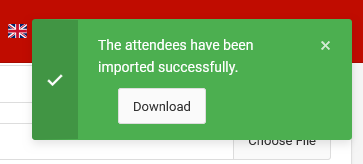
Once your attendee details have been imported from the confirmation message, download the CSV file to use with your mail merge.
The CSV file will contain the names of the attendees, a URL to their ticket page, and a URL for the QR Code itself.
For existing attendees, from the Attendees table, go to Options > Download Ticket URLs.
Mail Merge With Outlook
What you need:
- Microsoft Word
- Microsoft Excel
- Outlook (desktop app)
- Your CSV file should have at least:
First Name,Last Name,Email,QR_URL
Steps:
- Open Excel
- Open your CSV in Excel.
- Ensure your columns are labeled: First
Name, Last Name,Email,QR_URL - Save as
.xlsx(if it’s still.csv)
- Open Word
- Go to Mailings tab → Start Mail Merge → Email Messages
- Click Select Recipients → Use an Existing List → choose your Excel file
- Write your message e.g
Hi «First_Name», Here's your event ticket:<img src="See you soon!«QR_URL»" alt="Your Ticket QR Code"> - Finish & Merge
- Click Finish & Merge → Send Email Messages
- To:
Email - Subject line: “Your Event Ticket”
- Mail format:
HTML - Hit OK, and emails go via Outlook.
Mail Merge With Gmail
Tools: Use [Google Workspace add-ons] like:
Steps with YAMM:
- Google Sheets
- Open Google Sheets
- Import your CSV (File > Import > Upload CSV)
- Columns:
First Name,Last Name,Email,QR_URL
- Compose an email in Gmail
- Write a draft in Gmail and use variables like:
Hi {{First Name}}, Here's your ticket:<img src="{{QR_URL}}" alt="Your Ticket QR Code">
- Write a draft in Gmail and use variables like:
- Back to Google Sheets
- Click Extensions → Yet Another Mail Merge → Start Mail Merge
- Select your draft email and hit send.