Knowledge Base
AI Chatbot Integration for Google Chat
With our interactive AI/SI chatbot integration for Google Chat, you can manage many aspects of your event and attendee data using natural conversation directly within the Google Chat app.
What Can Our AI Chatbot Integration For Google Chat Do?
Our AI chatbot for Google Chat can streamline common workflows and complete tasks directly in Google Chat, without switching between apps.
The supported functions include:
- Attendee Creation: Create attendees and optionally issue tickets by uploading CSV files or sharing spreadsheet rows using our spreadsheet add-ons for Excel or Google Sheets.
- Ticket Issuance: Issue tickets for a single or multiple attendees.
- Check-in Confirmation: Confirm if a specific attendee has checked in.
- Chat Notifications: Receive sales, revenue, and check-in notifications directly in Google Chat.
- Attendee Search: Search for attendees.
- Profile Updates: Update an attendee’s profile or an event’s status.
- To-do Tasks: Add to-do and other event planning tasks.
- Reports: Generate report URLs that you can import into Power BI or Looker Studio for visualization or directly into Excel and Google Sheets for analysis.
- Statistics: Get ticket sales, ticket validation, and revenue earned statistics.
- Users: Create users for both the smartphone and web app.
- Promotions: Generate event QR Codes, obtain event listing URLs, and embed code.
- Knowledge Base: Ask and receive summarised how-to articles.
Setting Up Our Google Chat AI Chatbot
In your account, go to the Interactive AI Chatbots page.
Under the Google Chat section, click on the Connect button.
You will then be redirected to the Google Marketplace to install the chatbot.
In your account, go to the Interactive AI Chatbots page.
Under the Google Chat section, click on the Connect button.
You will then be redirected to the Google Marketplace to install the chatbot.
1. Install the App from the Marketplace Listing
- Individual Users: Click Install (or Individual Install). Review and accept the authorization scopes when prompted.
- Domain Admins: Click Admin Install to deploy the app across the entire organization or to specific organizational units.
2. Open Google Chat
- Navigate to chat.google.com or open Google Chat within Gmail.
3. Add/Start a Conversation with the Bot
- Click New chat (+) in the left sidebar.
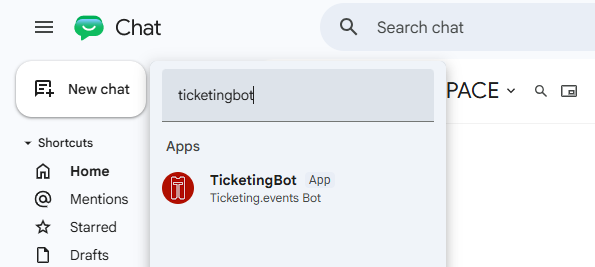
- Select Add apps (or search for TicketingBot in the search bar).
- Locate the app in the list and click Add or Chat.
4. Interact with the Bot
- Direct Message (1:1): Type a message (or use the slash commands) to start conversing with the bot immediately.
- Adding to a Space: To bring the bot into a team room, open the Space, click the space name at the top > Apps & integrations > Add apps, and mention the bot using
@TicketingBot.
Working With Our Google Chat AI Chatbot
Creating Attendees or Issuing Tickets
To create attendees and optionally issue tickets, you can upload a CSV file from the chat app interface, share rows of attendee data from a spreadsheet using our spreadsheet add-ons for Excel and Google, or ask the bot to create a single attendee or issue their tickets from a text-only prompt.
Receiving Chat Notifications
You can set up chat notifications for ticket sales, revenues earned, check-ins made, and venue presence.
The notifications get triggered based on specific conditions that you define for each ticket type.
To set up the chat notification, simply prompt the chatbot to create a chat notification.
Generating Reports
You can generate reports based on specific parameters, then get a URL to import them for visualization in Power BI and Looker Studio, or use our spreadsheet add-ons for Excel or Google Sheets to auto-import them.
To do so, prompt the chatbot to generate a report, then specify the type of report.
Confirming Checked-in Attendees
You can confirm which attendee has had their tickets validated.
To do so, prompt the chatbot to confirm a check-in.
Searching for Attendees
You can search for an attendee and view their tickets.
To do so, prompt the chatbot for the value to search for the attendee using their email address or phone number.
Obtaining Statistics
You can obtain statistics about ticket sales, revenues earned, and tickets validated.
To do so, prompt the chatbot to generate the statistics you’re interested in.
Creating Tasks
You can create to-do tasks for event planning.
To do so, prompt the chatbot to create a task.
Promoting Events
You can get the chatbot to generate event QR Codes (custom-styled or generic), obtain an event’s listing URL, or its embed code for use on external websites.
To do so, prompt the chatbot with the relevant promotion channel you intend to use.
Updating Profiles
You can update the profile of an attendee, including their custom fields.
You can also update the status of an event; however, it’s limited to activating or deactivating the event.
To do so, prompt the chatbot to update an attendee or an event status.
Creating Users
You can create user accounts for our smartphone app or the web app.
To do so, prompt the chatbot to create a desired user account.
Getting Help
You can get the chatbot to find and summarize knowledge base articles, or open a support ticket.
To do so, prompt it with a how-to question.
Slash Commands
These command shortcuts can trigger our chatbot to execute the respective function.
| Command | Description |
|---|---|
bot-attendee-import |
Import attendees or issue tickets from an attached CSV file. |
bot-process-csv |
Process a previously attached CSV file or shared spreadsheet. |
bot-attendee-ticket |
Create an attendee and issue tickets. |
bot-tickets |
Issue tickets to attendees. |
bot-attendee-update |
Update an attendee’s profile. |
bot-event-status |
Update an event’s status. |
bot-check-in |
Find out who has checked in. |
bot-guests |
Manage an attendee’s guest. |
bot-search |
Search for an attendee. |
bot-reports |
Generate reports for an event. |
bot-tasks |
Create to-do tasks. |
bot-notification |
Create a chat notification. |
bot-stats |
Get event statistics. |
bot-promotions |
Generate custom-styled or generic QR codes for an event, or obtain listing URLs and embed codes for sharing the event. |
bot-users |
Create users for the web platform or mobile app. |
bot-support |
Open a support ticket to contact our support team. |
bot-logout |
Log out of your chat session. |
bot-help |
Get help from our knowledge base. |